How to enable Flower federated learning in Workspaces (BETA)

What is Flower?

Flower is a framework for running federated learning tasks across a network. It has three main components:

  1. A CLI tool for managing the network
  2. SuperLink the network aggregator which manages federated tasks across multiple nodes
  3. SuperNode the deployed node software that runs the FL task on the remote data

Users of the Aridhia DRE can now provision a Flower network inside their hub. The Flower CLI is already integrated with Worksapces, this article explains how a workspace user can create SuperLinks and SuperNodes inside workspaces and then connect these to form a federated network. 

Creating a SuperLink app in a workspace:

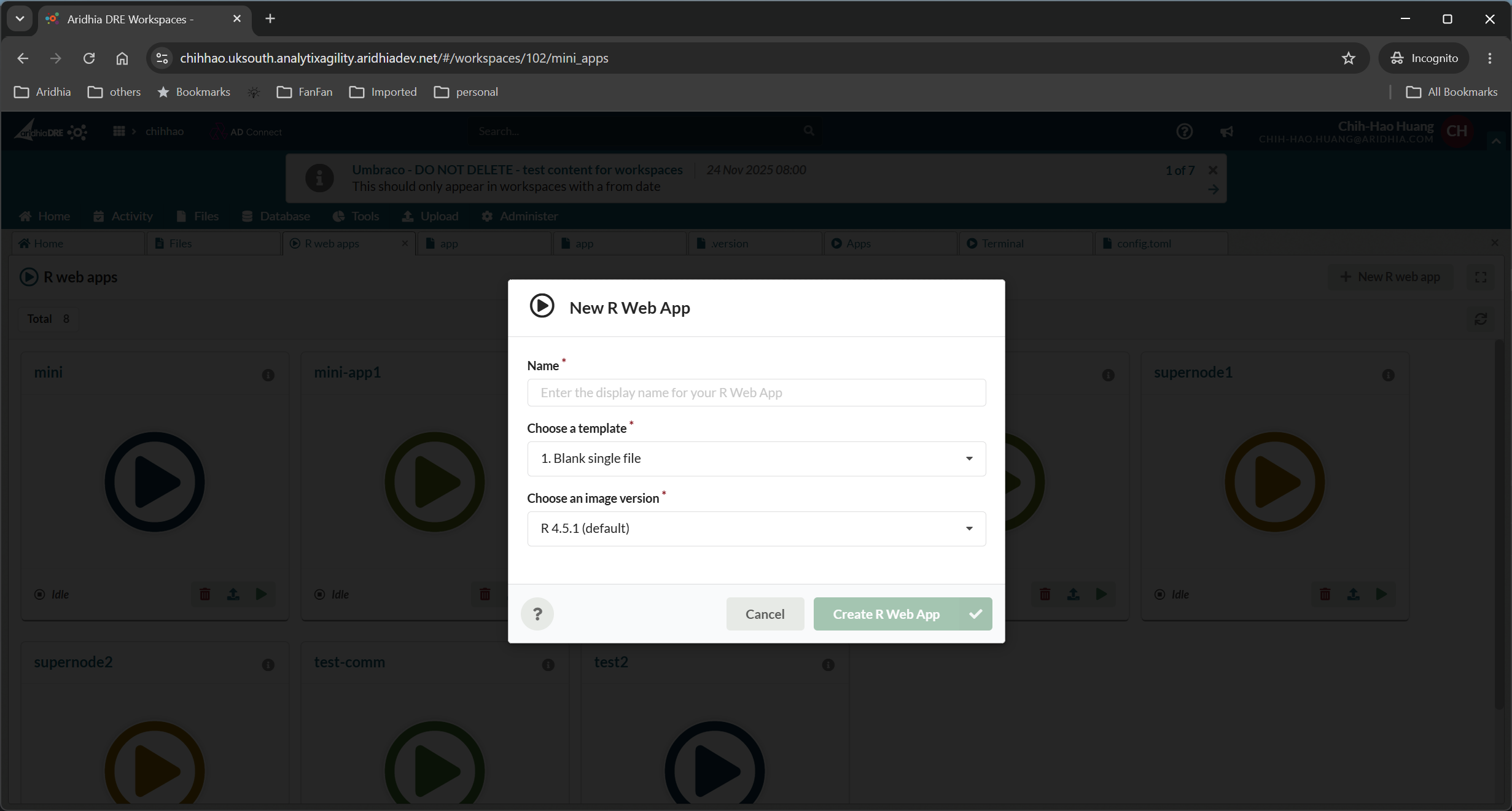
  1. Login to workspace and create a new R Web App. Give the app a clear name e.g. SuperLink App. Leave default selected fields and click Create R Web App.
  1. Go to Workspace Files ->your R-Web-App folder. You should see .version, in the folder

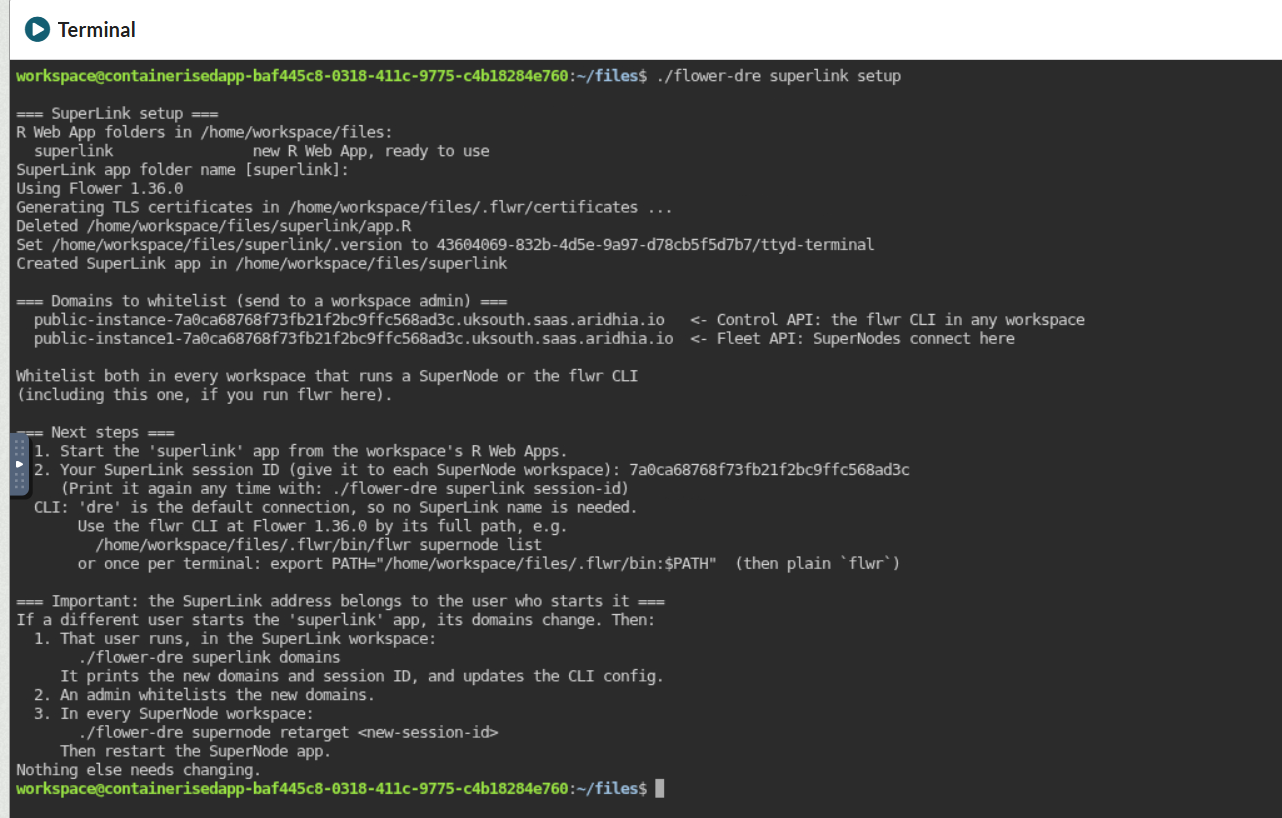
  2. Open .version file , delete everything there and update file with 43604069-832b-4d5e-9a97-d78cb5f5d7b7/ttyd-terminal and save it.

  3. Go to Workspace Files ->your R-Web-App folder. You should see app.R in the folder. Delete app.R and create a new file called app.

  4. Open app as a text file and add content below.

superlink example:

#!/bin/bash

flower-superlink --ssl-ca-certfile path-to-ca.crt --ssl-certfile path-to-server.pem --ssl-keyfile path-to-server.key --control-api-address 0.0.0.0:8080

Example of SuperLink App:

#!/bin/bash

flower-superlink --ssl-ca-certfile /home/workspace/files/cert/certificates/ca.crt --ssl-certfile /home/workspace/files/cert/certificates/server.pem --ssl-keyfile /home/workspace/files/cert/certificates/server.key --control-api-address 0.0.0.0:8080
#flower-superlink --insecure --control-api-address 0.0.0.0:8080

Tip: Some times if you are using copy/paste the R Web App gives error as its reading some non Unix characters in the app file. To fix this you can vi the app file in you Terminal App and do :set ff=unix and save the file and re run the R web App

How to Generate Certificate for superlink:

Superlink needs to run in TLS mode. Flower has an example python script to generate certificates which can be found here:

flower/examples/supernode-authentication/generate_creds.py at main · flwrlabs/flower.

Download this script to your local or workspace, and follow the below steps to generate your certificates:

        1. Create a folder in Files cert

        2. Create a file generate_creds.py and copy the content from the link above

        3. Start a Terminal App

        4. Go to Files → cert

        5. Run Command python3 generate_creds.py

This will create the following files in /home/workspace/files/cert/certificates/

 Creating a SuperNode app in workspace:

  1. Login to workspace and create a new R Web App. Give the app a clear name e.g SuperNode App. Leave default selected fields and click Create R Web App.

  1. Go to Workspace Files ->your R-Web-App folder. You should see .version, in the folder

  2. Open .version file , delete everything there and update file with 43604069-832b-4d5e-9a97-d78cb5f5d7b7/ttyd-terminal and save it.

  3. Go to Workspace Files ->your R-Web-App folder. You should see app.R in the folder. Delete app.R and create a new file called app.

  4. Open app as a text file and fill in the content.

Example of SuperNode app : 

#!/bin/bash

flower-supernode --superlink "public-instance1-<superlink app session id>.<hub-domain>:443"

For a SuperNode to join a Superlink it requires the domain name of the SuperLink as shown above.

The hub domain is the domain of the hub the network is being run in. A workspace Tennant Admin can add this to the workspace network whitelist. 

Instructions on how to find the SuperLink app session ID are detailed below. 

Starting SuperLink and SuperNode apps 

Following set up of the SuperLink and SuperNodes the network can be started using the following instructions:

  • Go to R web apps, start your superlink app

  • Turn on developer tool to find session_id for the SuperLink app

  • Give this to supernode apps file that you would like to join this superlink. Supernode apps adjust their app file content and then can start supernode apps.

Use FlowerCLI to handle Flower: (This is Flower configuration)

  • In workspace Files, create a new folder .flwr and then create file config.toml .

  • Add superlink info into the config file.

Example:

[superlink.myserver]
address = "public-instance-<superlink app session id>.<hub-domain>"

Example from QC hub:

[superlink.myserver]address = "public-instance-cb5cf4eed4ddf719ecf976b2547d90c0.westeurope.qc.aridhiatest.net"

Start the terminal app from workspace Apps. You should be able to run flwr command in the app.

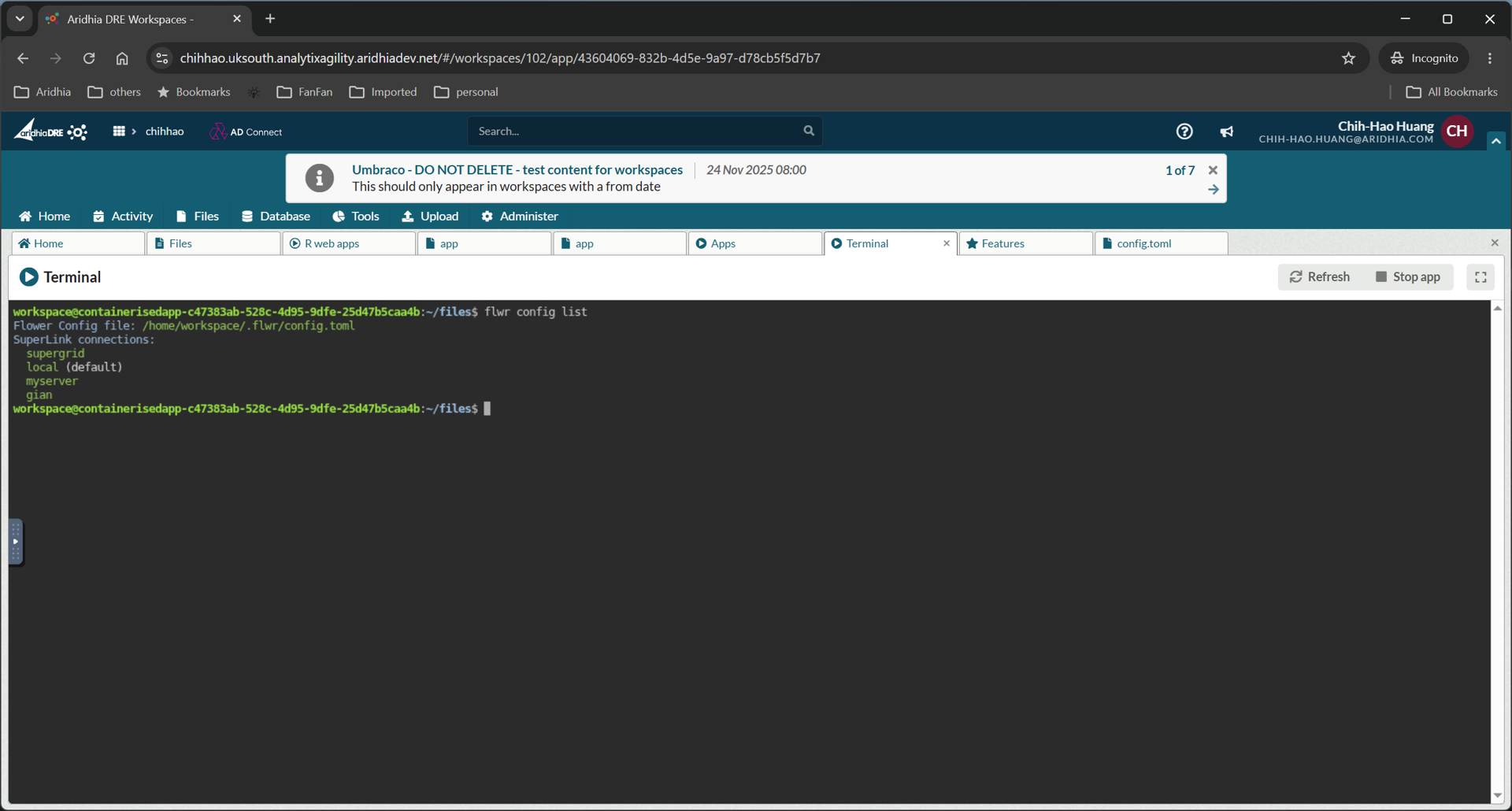
Some flwr commands to verify:

Show superlinks

flwr config list

Show supernodes in a superlink

flwr supernode list <superlink name>

Run a task (you need to upload flower task to workspace)

flwr run <app path to pyproject.toml> <superlink name>

Check running tasks

flwr list <superlink name>


Updated on October 05, 2026