
Data Access Request Task List
Complex approval workflows can have multiple steps, in some cases requiring different users to interact with the workflow at different points in the approval process. To manage this complexity workflows are broken down into discrete tasks. Data Owners can view and manage these tasks in the Task List tab.
Users can navigate to their task list directly from the Access drop-down menu or from the Review Requests tab using the Task List button at the top of the screen:
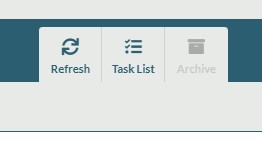
Viewing the task list

The task list displays the following information:
| Field | Description |
| Name | The name of the specific task |
| Assigned to | Who is currently assigned to the task |
| Created on | When the task was created |
| Request | The Data Access Request the task is associated with |
| Dataset | The dataset that is being requested |
| Requested by | Who submitted the request |
| Workflow | The workflow associated with the dataset |
Users can filter the tasks either by using the my tasks/all tasks toggle or the free text filter. These are both in the top right of the task list table.
Managing tasks
The ellipses on the right of the table allow users to manage tasks:
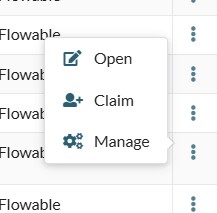
Open allows users to view the task details, and if they have been assigned it, take action against the task. Claim and Manage allow users to be assigned to the task.
Opening a task
Choosing open allows users to see the detail of the task in question:
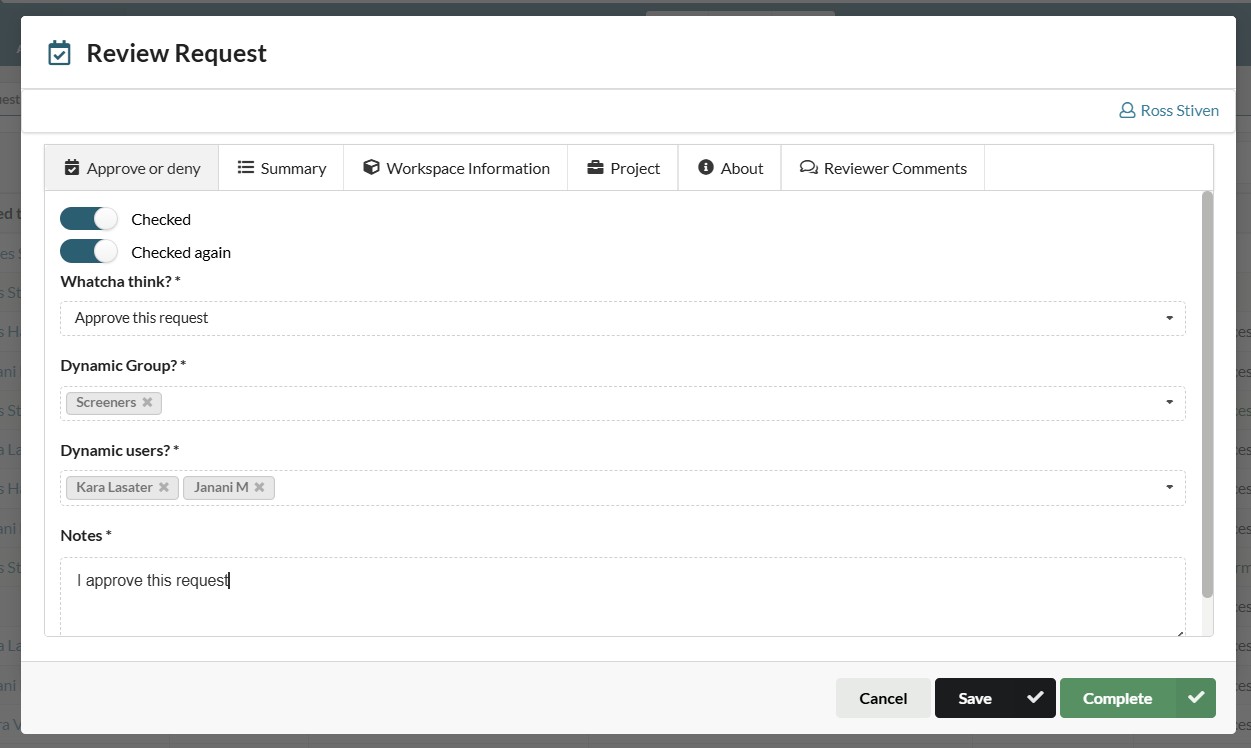
The contents will vary from task to task, but in general they provide the user with information about the request and the actions needed to complete the task. In the example above the user is provided with information about the request in the summary, workspace information, project and about tabs. The approve or deny, and reviewer comment tabs, allow them to carry out specific actions against the task.
Where a task is part of a workflow which has two or more sequential tasks then completion of the first task will generate the second task and so on.
Assigning or claiming a task
There are two ways a task can be assigned, a user claims a task themselves or is assigned it by another user.
Claiming a task
To claim a task users can either choose the claim option from the task menu, or use the claim button on the task table, in both cases the task will immediately be assigned to the user claiming it.
Assigning a task to another user
A task can be assigned to another user by selecting the manage option from the task menu. Selecting a group allows members of the chosen user group to claim the task. Adding an asignees email address assigns the task to the specific user.
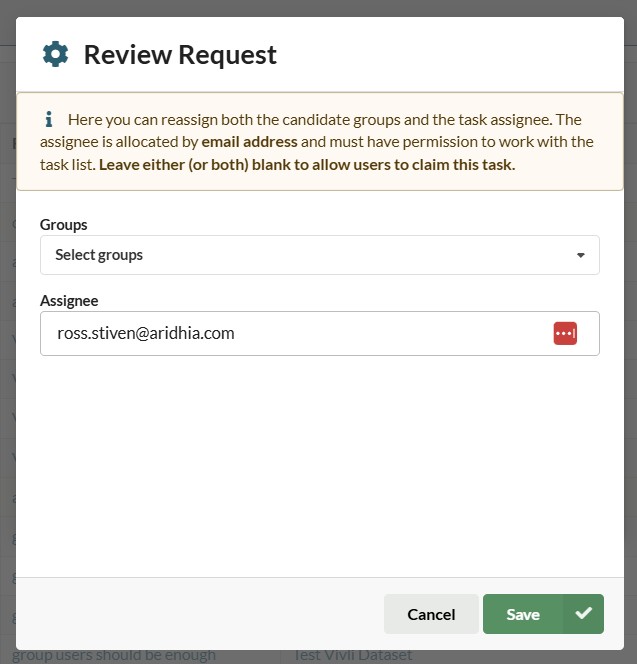
Where the user has the appropriate permission this method can also be used to reallocate tasks to another individual or group.
Task list permissions
The following permissions govern user access to the request task list:
- Users can reallocate tasks
- Users can access the task list
- Users can claim, update and complete request approval tasks
- Users can unassign themselves from request approval task
As with all FAIR permissions these can be added to custom user roles as required.