
Customising Search
FAIR search is configured by default to map to the Standard Catalogue template available in all FAIR hubs.
However, where a hub owner has introduced one or more custom catalogue templates, they may want to update their search configuration to include fields from the new catalogue.
This article details how the search configuration can be managed and updated.
Search Configuration Endpoints:
Users with the appropriate permissions can customise the search config via the FAIR API using the following endpoints:
| API Endpoint | Description |
|---|---|
GET search/configurations/ |
Returns all available search configurations within a hub |
POST search/configurations/ |
Post a new search configuration |
GET search/configurations/{code} |
Returns a specific search configuration using code |
PUT search/configurations/{code} |
Update an existing search configuration using code |
DELETE search/configuration/{code} |
Allows the user to delete an existing search configuration |
GET search/configurations/{code}/uiconfig |
Returns the uiconfig for a specific search configuration using code |
A hub can have multiple available search configurations, but only one can be active. This can be managed via the following endpoints:
| API Endpoint | Description |
|---|---|
GET /configurations/{code} |
Using the code `default-search-config' will return the current active search configuration |
PUT /configurations/{code} |
Used to update the default search configuration and runs a search reindex |
Search Configuration
The search configuration has five main elements: vector_weight, score_threshold, fields , uiconfig (which contains elements and facets), and base_search_weights.
vector_weightdetermines the weight given to vector search results versus string matching.score_thresholddetermines the minimum score for a search result to be returnedfieldsdetermines which catalogue fields will be indexed and mapped in the search configurationelementsunderuiconfigdetermines which features of the search tab are enabledfacetsunderuiconfigdetermines how the mappedfieldsare displayed as facets in the UIbase_search_weightsdetermines the search weighting for required metadata elements. The default values can be modified by users with the appropriate permission.
The current default search configuration contains all of these elements and is shown below:
{
  "name": "Standard Config",
  "vector_weight": 0.7,
  "score_threshold": 0.01,
  "fields": [
    {
      "name": "keyword",
      "type": "strings",
      "weight": 1.2,
      "mapping": "catalogue/keyword",
      "allow_vector_search": true
    },
    {
      "name": "publisher",
      "type": "string",
      "mapping": "catalogue/publisher/name"
    },
    {
      "name": "author",
      "type": "string",
      "mapping": "catalogue/creator"
    }
  ],
  "uiconfig": {
    "elements": [
      {
        "name": "searchbox",
        "enabled": true
      },
      {
        "name": "sidebar",
        "enabled": true
      },
      {
        "name": "dropdown",
        "enabled": true
      }
    ],
    "facets": [
      {
        "type": "strings",
        "name": "keyword",
        "label": "Keywords",
        "config": {
          "count": 10,
          "sort": "count"
        },
        "enabled_sidebar": true,
        "enabled_dropdown": true
      },
      {
        "type": "string",
        "name": "publisher",
        "label": "Publisher",
        "enabled_sidebar": true,
        "enabled_dropdown": true
      },
      {
        "type": "string",
        "name": "author",
        "label": "Author",
        "enabled_sidebar": true,
        "enabled_dropdown": true
      },
      {
        "type": "boolean",
        "name": "request_enabled/supported",
        "label": "Access Request Supported?",
        "enabled_sidebar": true,
        "enabled_dropdown": false,
        "permission": "requests.create"
      },
      {
        "type": "boolean",
        "name": "query_enabled/supported",
        "label": "Cohort Supported?",
        "enabled_sidebar": true,
        "enabled_dropdown": false,
        "permission": "cohorts.create"
      },
      {
        "type": "boolean",
        "name": "conditional_access/supported",
        "label": "Has Conditions?",
        "enabled_sidebar": true,
        "enabled_dropdown": false,
        "permission": "requests.create"
      }
    ]
  },
  "base_search_weights": {
    "code": 0.8,
    "title": 1.2,
    "description": 1,
    "primary_dictionary": 0.8,
    "settings": {
      "dataset_actions": 0.7,
      "workflow_key": 0.7,
      "visibility": 0.7,
      "catalogue_definition_code": 0.7
    },
    "request_enabled": {
      "reasons": 0.5
    },
    "query_enabled": {
      "reasons": 0.5
    },
    "conditional_access": {
      "reasons": 0.5
    },
    "dictionaries": {
      "name": 0.7,
      "description": 0.7,
      "fields": {
        "name": 0.7,
        "description": 0.7,
        "constraints": 0.7
      },
      "lookups": {
        "name": 0.5,
        "options": {
          "name": 0.5,
          "description": 0.5
        }
      }
    }
  }
}
Fields
The fields section of the search configuration determines which catalogue fields are search-indexed and available for use in drop-down and sidebar facets or vector search. Fields have the following format:
{
  "name": "keyword",
  "type": "strings",
  "weight": 1.2,
  "mapping": "catalogue/keyword",
  "allow_vector_search": true
}
Field attributes are:
name- the name of the field in searchtype- the search field type (see table below)weight- search weight for the field, all indexed fields default to 1.0 if no value is providedmapping- the catalogue field the search maps toallow_vector_search- determines if the field is indexed for vector search (supported for string, strings, text, markdown, and mapped object and link types - see below for more info)
The search types use a simplified type list. These are listed below and can be mapped to catalogue fields as shown:
| Search Field Type | Catalogue Field Type |
|---|---|
| object | object, link |
| objects | objects, links |
| boolean | boolean |
| booleans | booleans |
| string | string, text, phone, label |
| strings | strings, texts, list, markdowns |
| markdown | markdown |
| number | number |
| date | date |
| dates | dates |
For more complex catalogue field types object and link, users may specify which elements of the field are indexed with the field mapping to pull out a string, strings, text, or markdown field.
The publisher field in the default search configuration is an example of this. In the default catalogue template, the Publisher field has two elements, name and URL:
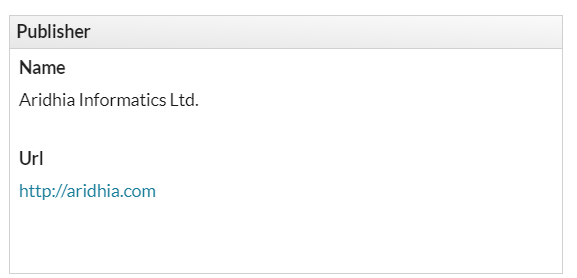
Only the name of the publisher is indexed in the default search configuration:
        {
          "name": "publisher",
          "type": "string",
          "mapping": "catalogue/publisher/name"
        },
In this case, the mapping details the catalogue field, publisher, and the specific element from it to be indexed, name.
We recommend this approach for indexing complex catalogue fields, as it allows users to index the most valuable elements and easily create associated facets.
In addition to user-defined fields, a variety of common details are indexed across all datasets - e.g., their name, description and request status, among others.
uiconfig - elements
The first section of the uiconfig section is elements:
        "elements": [
          {
            "name": "searchbox",
            "enabled": true
          },
          {
            "name": "sidebar",
            "enabled": true
          },
          {
            "name": "dropdown",
            "enabled": true
          }
        ],
This determines which UI elements are visible to users. By default, the search UI is configured to display the following elements:
- search box - free text search box at the top of the page
- side bar - the side bar contains search facets as specified by the search configuration
- drop-down - provides an alternative way of displaying facets as drop-down menus below the search bar
uiconfig - facets
The second section of the uiconfig is facets. Facets appear in the drop-down or sidebar and can be used to filter results. These can relate to two aspects of a dataset:
- Catalogue fields
- Dataset properties
The default configuration contains examples of both, and further detail of each type is provided below.
Catalogue field facets
Search can be configured to show custom drop-down or sidebar facets based on catalogue fields.
In the default configuration, publisher is an example of a facet based on a catalogue field:
          {
            "name": "publisher",
            "label": "Publisher",
            "enabled_sidebar": true,
            "enabled_dropdown": true
          }
Facet attributes are:
type- the search field type (see Fields section above)name- the name of the catalogue field that the facet relates tolabel- the display name for the facet in the search UIenabled_sidebar- if true, the facet is displayed on the sidebarenabled_dropdown- if true, the facet is displayed as a drop-down
These are the minimum required fields for catalogue facets. For details of additional facet options, see optional uiconfig below.
Dataset property facets
In the default configuration, request_enabled/supported is an example of a facet based on a dataset property:
          {
            "name": "request_enabled/supported",
            "label": "Access Request Supported?",
            "enabled_sidebar": true,
            "enabled_dropdown": false,
            "permission": "requests.create"
          }
This type of facet relates to facts about the dataset that are not part of the catalogue definition. The default configuration contains three of these:
request_enabled/supported- can the dataset be requestedquery_enabled/supported- can cohorts be created from the datasetconditional_access/supported- does the dataset have any associated conditions
These facets will be relevant to all datasets in FAIR, and we do not recommend customising them.
Optional uiconfig
In addition to the required uiconfig fields detailed above, users have a number of options that allow them to further customise their search facets. This section provides some examples of this.
Example: String UI Configuration with Optional Count and Sort
{ "name": "publisher", "label": "Publisher", "enabled_sidebar": true, "enabled_dropdown": true, "config": { "count": 10 "sort": "-value" } }
'count' can be used to limit the maximum number of results returned by any search.
sort determines the order that results are displayed in. The default value is 'count' which orders the facets in descending order based on the count, but this can also be set to:
-count- orders facets in ascending order based on countvalue- orders facets by value in descending order-value- orders facets by value in ascending order
Example: Date UI Configuration with Interval and Timeoffset
{ "name": "published", "label": "Published Date", "enabled_sidebar": true, "enabled_dropdown": false, "config": { "interval": "year" "timeoffset": "+01:00" } }
interval is for date and number fields only, and is used to generate search ranges. In this example the interval is a date, these can be configured to intervals of day and month. For numbers the range is set by integer e.g. '10' will create ranges with intervals in tens.
timeoffset can only be used in conjunction with date intervals, and is used to align the results with a specific timezone. FAIR defualts to UTC, so in this instance UTC 0000 becomes 0100.
Example: Number UI Configuration with Values
{ "name": "participants", "label": "Participants", "enabled_sidebar": true, "enabled_dropdown": false, "config": { "values": "100|500|1000|2000" } }
'values' is also only for date and number fields. Where interval generates ranges based on the users input, values allows them to create their own pre-determined bins by entering a pipe-seperated list as shown above. This example would create the following search facets:
-
0 - 100
-
100 - 500
-
500 - 1000
-
1000 - 2000
-
2000+